
Team Leader and Team Member Management
Team Leaders serve as the Area Leader for their team members. The Teams Division will manage the Team Leaders and Team Member roster and assignment.
When a new Team Leader is appointed to the role, there are a few things that need to be done in the Power Portal. Keep in mind that all agents who join Epique are added to the Power Portal as a lead and assigned to the managing broker as appropriate. For a new team where a leader is created, this is the process:
- Add Team Leader to Power Portal as a user and assign to State Office
- Create Agent Tag with the name of the team
- Create lead tag with the name of the team
- Tag and assign leads to the Team Leader as the Agent role
Each of the above steps is detailed below.
Add Leader to Power Portal as User and Assign to State Office
On the Settings > Users screen, click on + Add Agent in the upper right corner. Use the Team Leader's name or email to search for them. Start with email, and if you can't find them, then use their name. It will be the same as their User seat in the main Enterprise in Lofty. You can only invite Active status users from the main Enterprise account into the Power Portal. If the name or email search isn't working, email Adam Frank, Lofty Liaison, at loftyliaison@epiquerealty.com for assistance. If the Team Leader is also an Area Leader for non-team members, they will be assigned an Area Office for their area mentees. Do not change their office to the State Office; leave/assign them in the Area Office.
Create Agent Tag with the Team Name
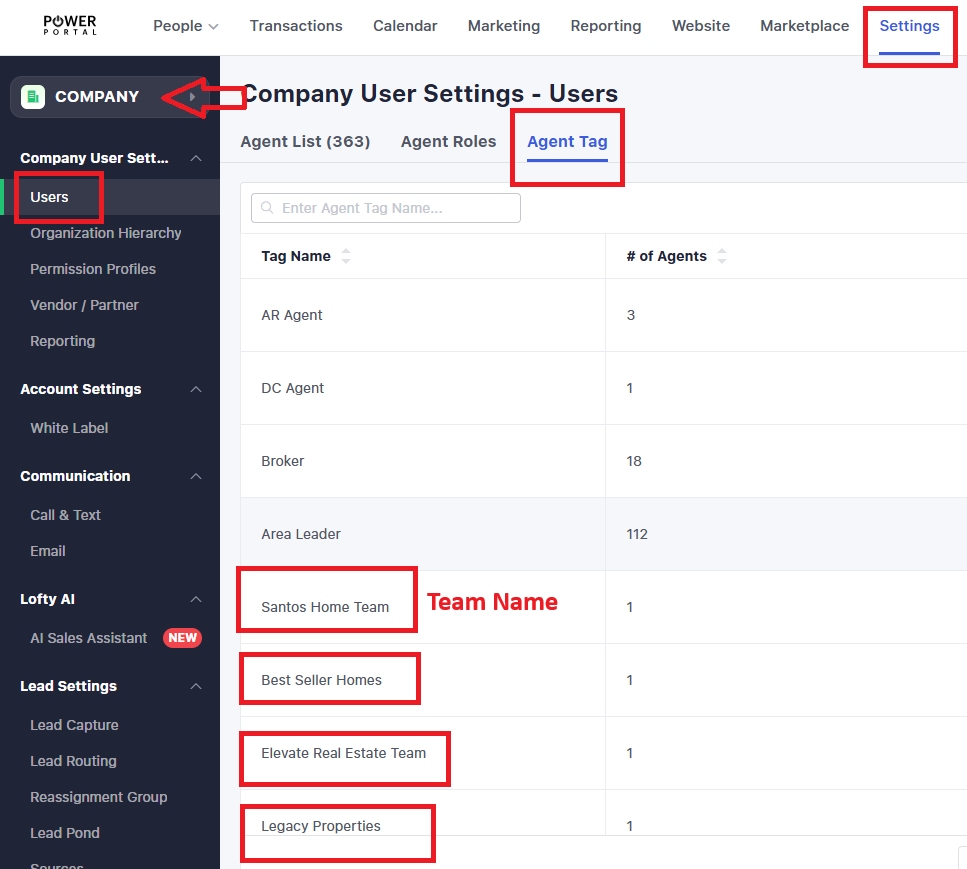
On the Settings > Users screen, click the Agent Tag tab, then click Add New in the upper right corner. Enter the team name.
Create Lead Tag with the Team Name
On the Settings > Users screen, click the Tag link on the left side menu. Make sure the Company is selected for the settings in the upper left corner, then click Add New in the upper right corner (blue button). Enter the team name.
Tag and Assign leads to the Team Leader Agent Role
On the People page, locate the agents who need to be assigned to the Team Leader. You can filter based on the managing broker to narrow it down more. Once you find an agent, you can mark the checkbox in front of their name, then above the columns, you will see an option named More. Click it and then select Assign. Each role is visible, and you can select to assign it to the Agent role (Area/Team Leader) or other roles if needed. The broker, regional, national, and state leaders should be accurate already. Click Save to make the change.
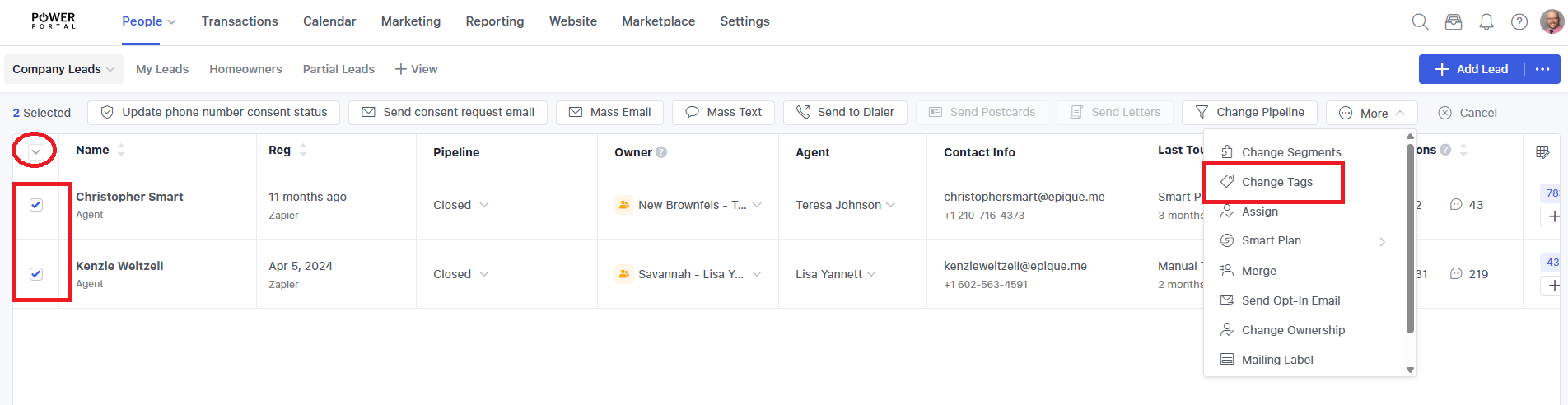
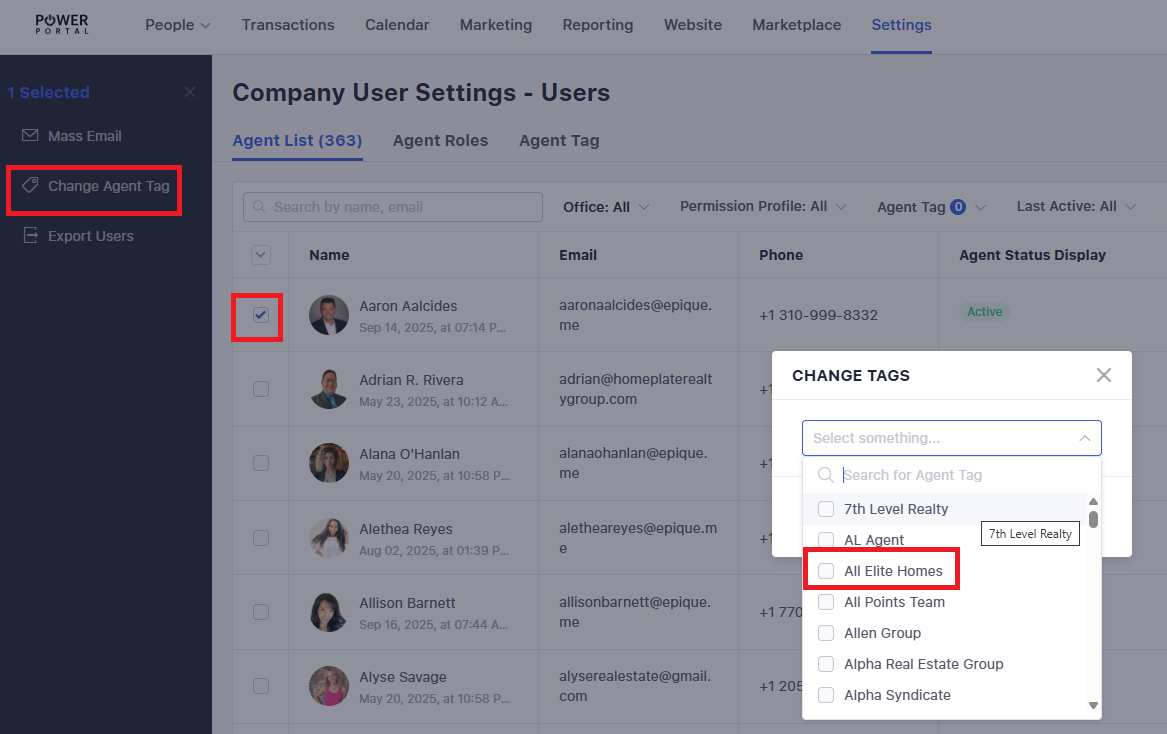
Once all team members have been assigned to the Team Leader, click the filter funnel in the upper right corner of the People page. Scroll down to the Agent role and enter the Team Leader name. The list of team members will be shown. Click the dropdown arrow in the upper left corner of the screen and the pipeline menu will be replaced by an action menu. Click Change Tags. Search for the team name, mark the checkbox in front of the tag, then click Save.
No Comments